

Education Your Way: Urban, Flexible, Lifelong
Founded in 1973, the University of Colorado Denver (CU Denver) offers a modern, comprehensive urban education with multiple paths to success—in life and career—delivered how, when, and where you want it. CU Denver is the state’s premier public urban research university, offering more than 100 degree programs in seven schools and colleges and across a spectrum of bachelor’s, master’s, doctoral, and professional and continuing education options. Research, internship, and apprenticeship experiences are a hallmark of a CU Denver education, giving learners an excellent education and real-work skills and job experience along the way.
Globally connected and locally invested, CU Denver partners with more than 15,000 future-focused learners—among the most diverse in the state—to design accessible, relevant, transformative educational experiences for every stage of life and career. Our proximity to downtown Denver enables many opportunities to enhance lives, careers, and professional networks as we are located within steps of the city’s business, political, and arts corridor – and we have deep partnerships in the city, state, and region to help create or accelerate learners’ paths.
Our leading faculty inspires and works alongside students to solve complex challenges through boundary-breaking innovation and impactful research and creative work. As part of the state’s largest university system, CU Denver is a major contributor to the Colorado economy, with 2,000 employees and an annual economic impact of $800 million.

Education Game Changer
We are committed to making higher education work for all, understanding that to meet the needs of all learners at every stage of life and career we must provide an education that is diverse, innovative, flexible, and relevant to the demands of today.

High-Quality Academics
Working across a broad range of highly ranked programs and degrees in the arts, sciences, humanities, business, and more, our world-class faculty have the expertise and passion to create an engaging, real-world learning environment.

Society-Advancing Research
Complex challenges require comprehensive solutions, and our researchers and scholars work collaboratively alongside our students and other researchers and organizations to generate transformative, real-world advancements in tech, healthcare, sustainability, and more.

Future of Work Leader
As an active partner in shaping the future talent that Colorado and the world need, we work hand-in-hand with industry partners to train the next generation of leaders and fuel workforce pipelines.

Impactful Partner
As an anchor institution in downtown Denver, we align our innovative mindset, cutting-edge research and scholarship, and collaborative spirit with civic, business, and academic leaders to boost the economy, fuel the workforce, and benefit the community.

Top Employer
We are committed to being a best place to work, offering comprehensive benefits—from wellness programs to homeownership support—and creating a culture where everyone belongs and can succeed.
Our Charge: Make Education Work for All
CU Denver is redefining the model of tomorrow’s public urban research university to lead to a more equitable and innovative society.
We know that, for the last 300 years, higher education was designed to meet the needs of the privileged few.
We see it differently: We strive to make education work for all. Education has the power to transform lives, expand economies, and uplift communities, and everyone must have access to these opportunities. That is why we seek to become the nation’s first equity-serving institution—an inclusive, supportive university where all can excel.
CU Denver by the Numbers
15,000
students. 68% undergraduate + 32% graduate
½
of undergraduates are students of color
100,000+
alumni from more than 100 countries
½
of undergraduates are first-generation college students
110+
undergraduate majors & minors
130+
student-led organizations
7
schools & colleges
41
bachelor’s degrees / 59 master’s degrees
14
doctoral degrees/numerous online & noncredit offerings
$832M
economic impact contributed to Colorado’s economy
2,000
faculty and staff supporting student success
10:1
average undergrad student-to-faculty ratio


CU Denver's Leadership
Building a strong and diverse leadership team is deeply important for our success as a university. Our cabinet members have joined us from locations near and far, bringing a wealth of knowledge and unique experiences.
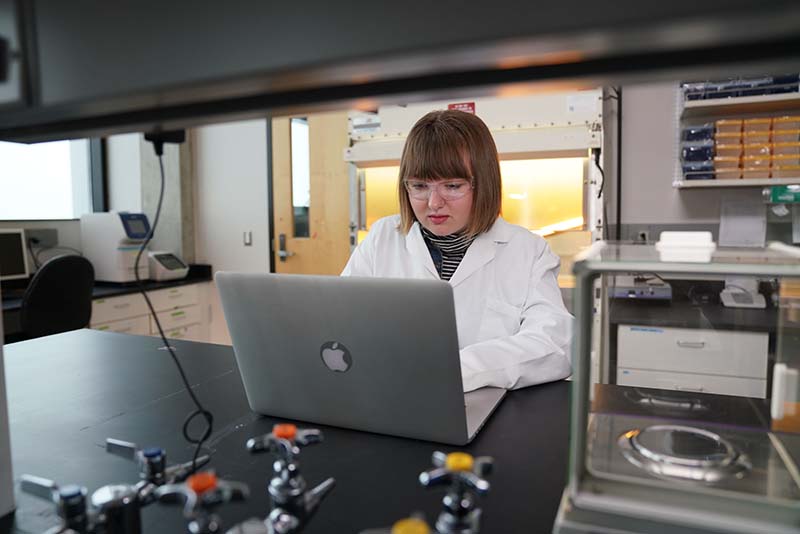
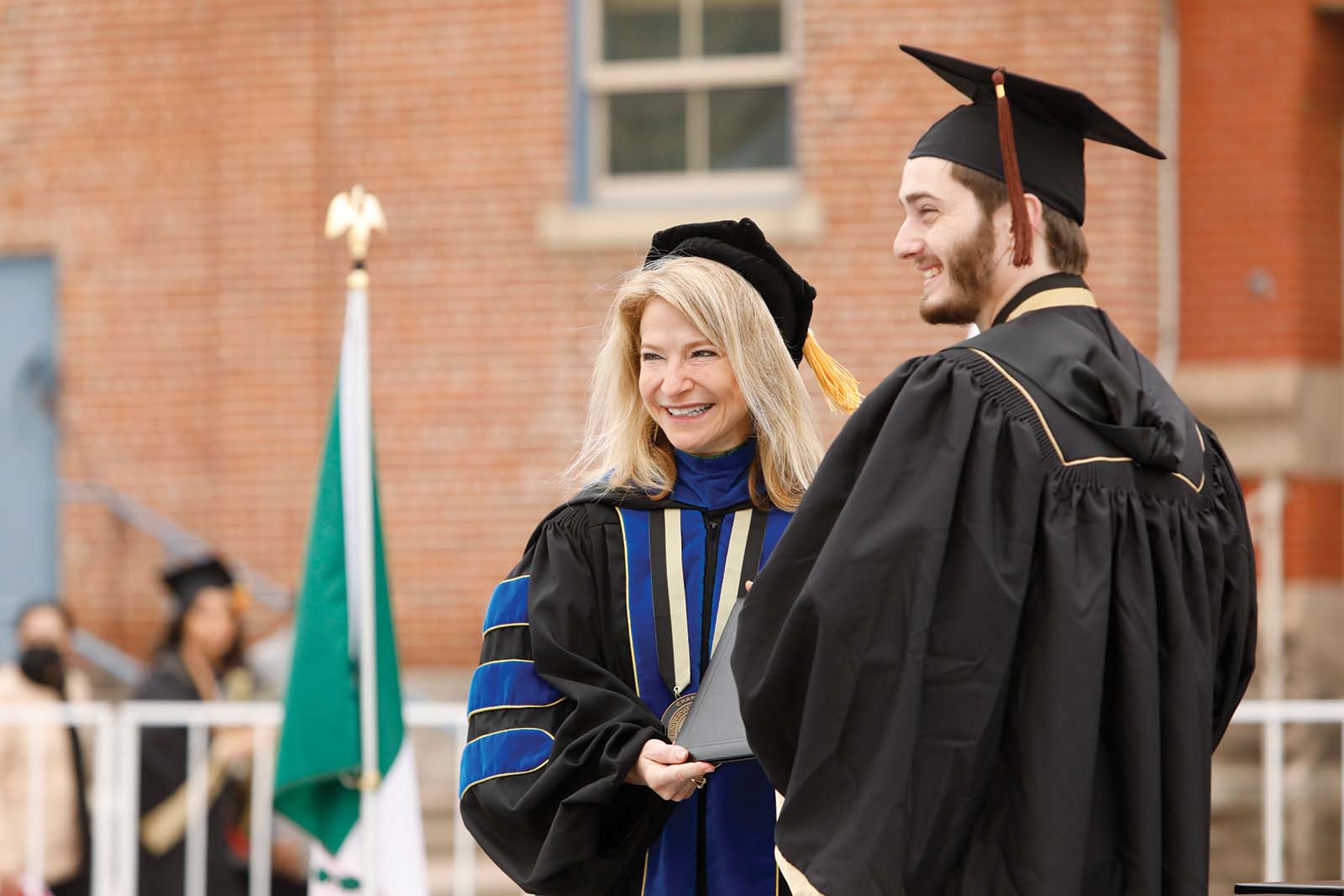
Since joining CU Denver in July 2020, Chancellor Michelle Marks has pursued an ambitious vision for the future of CU Denver and its impact as a leading public urban research university.
Providing a High-Quality Academic Experience
Our top-ranked academic programs help students gain real-world experience in issues with global impact and in top industries that lead to meaningful, successful careers. We offer more than 110 undergraduate and graduate degree programs across seven schools and colleges, as well as more than 30 online degree programs and numerous certificate and non-degree programs.
Innovating Research & Discovery
The complexities of today’s global challenges require approaches that address them head-on with fresh thinking and dynamic, diverse teams. As an R1 institution and Colorado’s only public urban research university, our faculty and students solve problems that matter and help shape the region through their research in areas such as cybersecurity, K-12 education, smart and sustainable urban infrastructure, and health – bolstered by our affiliation with the nationally renowned Anschutz Medical Center. For our students, our research programs provide exposure to industry-leading faculty and real-world experiences in the lab, in the field, and in the classroom – experiences that build resumes, advance careers, and change lives and communities.
By taking on the challenges affecting society today, we translate our research to impact.
Leading on Diversity
Our diversity is a source of pride for students, faculty, and staff alike, and is based on our shared belief that diverse experiences and viewpoints enrich the learning and professional environment for all of us. But it is not enough to simply be diverse. As we work to become the nation’s first equity-serving institution, we will sustain a culture of belonging for all and provide the resources and support to help everyone succeed. Each year our Center for Identity & Inclusion helps thousands of students succeed academically and professionally.
Anchoring Our Dynamic Location: Denver, Colorado
CU Denver is nestled near the heart of downtown Denver—Colorado’s capital and biggest city. Known as the Mile High City, Denver is known for its 300 days of sunshine, high-tech startups, local shops and restaurants, a unique music and arts scene, and its proximity to the breathtaking Rocky Mountains. You are sure to find something you love in one of the country’s fastest growing cities, and we are located at the center of it all.
Toward a Brighter, More Equitable Future. Together.
CU Denver has created an ambitious 2030 Strategic Plan to become a public urban research university that works for all: learners of all kinds, industries and employers that need talent ready to hit the ground running, and communities requiring new solutions and discoveries. We have a rich history in supporting students from all walks of life. Learn about the history of CU Denver and how we got to where we are today.
Hear from Our Students
CU Denver students answer what they love about the university
.tmb-0.jpg?Culture=en&sfvrsn=3f3682ba_3)
.tmb-0.jpg?Culture=en&sfvrsn=e30882ba_3)
.tmb-0.jpg?Culture=en&sfvrsn=970882ba_3)
.tmb-0.jpg?Culture=en&sfvrsn=ff0882ba_4)
Notable Alumni

Jack Kroll - Chair of the CU Board of Regents
Elected in 2016 to represent Colorado’s 1st Congressional District, Jack Kroll’11, MS ’20 is a proud Lynx alum who now serves as Chair of the CU Board of Regents.

Thomas Evans - The internationally acclaimed muralist
Thomas Evans is a professional artist, working under the name Detour, a name inspired by the title of a breakdancing VHS tape he’d bought while living in Germany.

Lynn Renee Maxcy - Handmaid’s Tale Writer
Lynn Renee Maxcy is a successful film and television writer who is most known for her work on hit shows like The Handmaid’s Tale and Covert Affairs.

Pat Meyers - Colorado’s Chief Economic Recovery Officer
After a successful career in law, restaurants, politics, and the Navy, 2020 brought CU Denver alum Pat Meyers back into public service once again as part of Colorado’s COVID Innovation Response Team.
CU Denver
CU Denver
Student Commons Building
1201 Larimer Street
Denver, CO 80204
(303) 315-5969
CMS Login